

Auto-Detect Applications & Workloads
Auto-Detect is the AI Assistant that discovers potential application workloads from your software inventory and infrastructure patterns. Instead of building every application by hand, you let the assistant propose the workloads it sees, then review and confirm them. It's the fastest way to get a first picture of the estate.
The AI Assistant panel
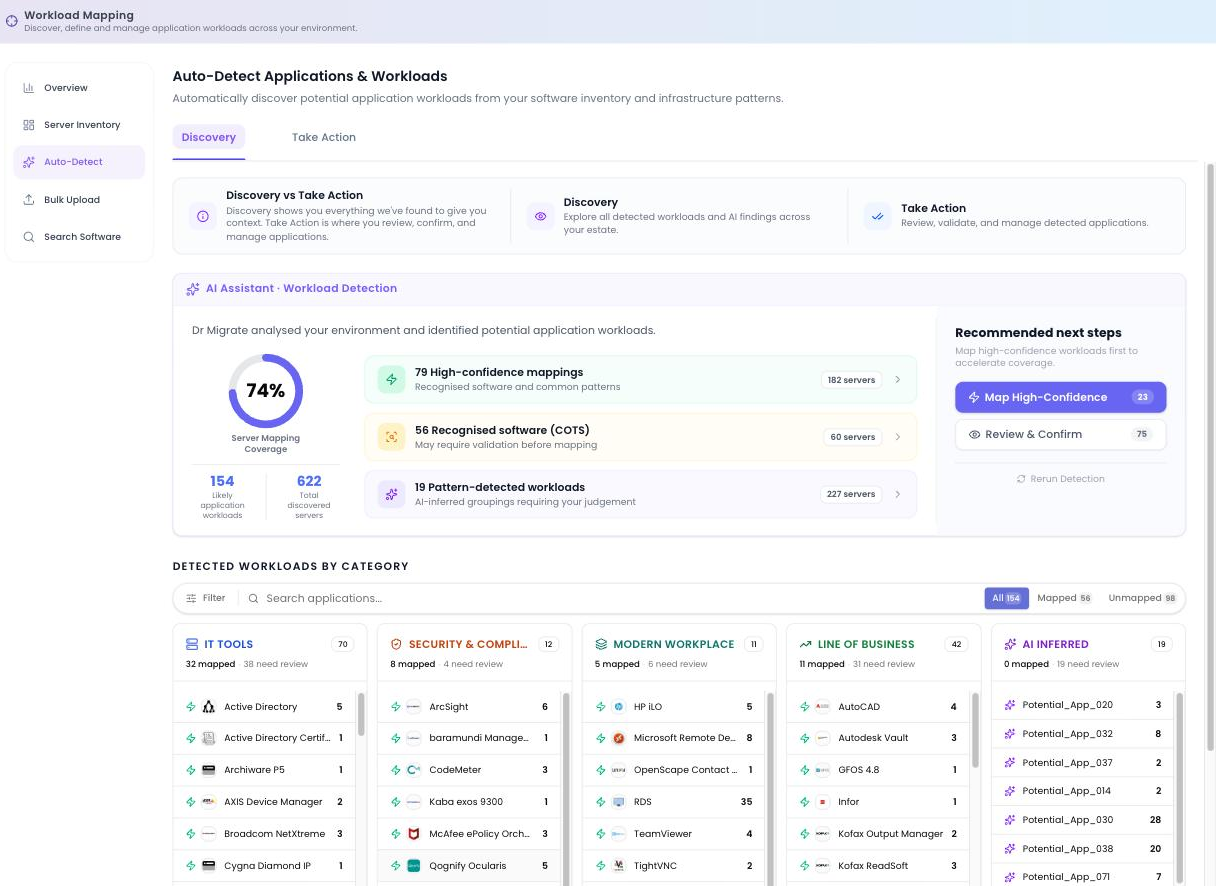
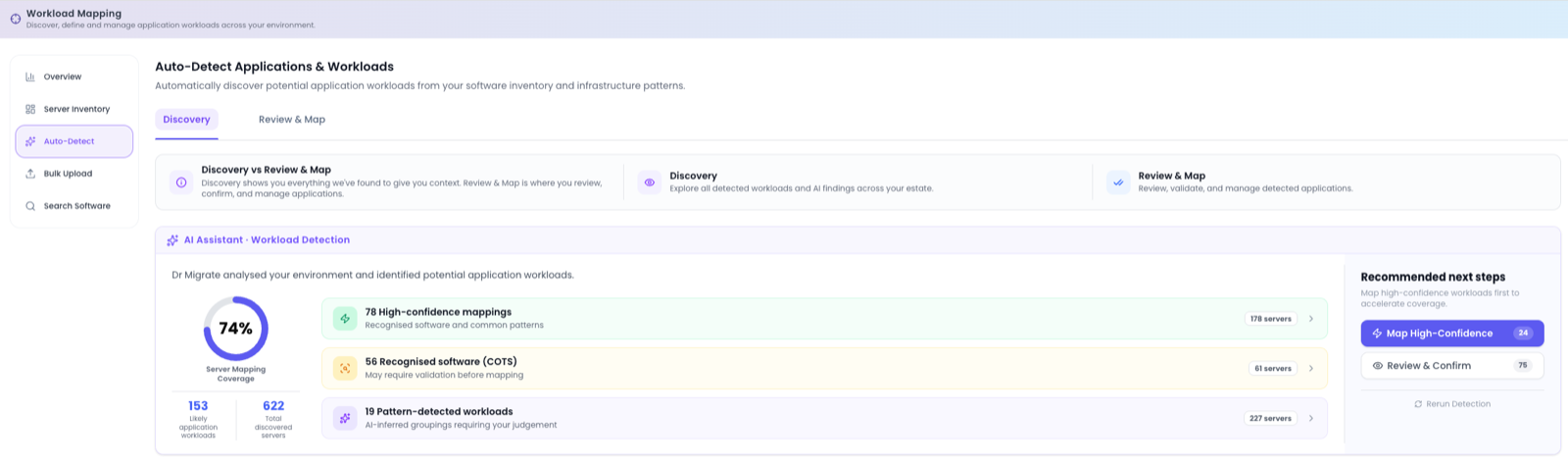
The AI Assistant · Workload Detection panel sits at the top and summarises what the assistant has found: your Server Mapping Coverage %, the number of likely application workloads, and the total discovered servers it analysed. Findings are sorted into three confidence buckets so you know how much to trust each one:
| Bucket | What it means |
|---|---|
| Primary COTS | Primary commercial off-the-shelf software identified with high confidence, safe to map in bulk. |
| Secondary COTS | Additional off-the-shelf products identified with slightly lower confidence; review before mapping. |
| Pattern-detected workloads | AI-inferred groupings based on naming, software inventory or network relationships; these need your judgement. |
Three recommended next steps are offered alongside: Map Primary COTS (accept the safe bucket in one move), Review & Confirm (work through suggestions individually), and Rerun Detection (re-analyse after your data has improved).
For the best results, Bulk Upload any CMDB data you have first. Even a partial import gives the AI real examples to learn from, which improves its accuracy. On its own, Auto-Detect gives you a solid "720p picture" of the estate; bulk upload sharpens it.
Discovery, Review & Map and AI Advisor
The screen has three tabs. Discovery is for exploring everything the assistant found; Review & Map is for deciding what to do with each finding; and AI Advisor brings the AI Advisor directly into the workload-mapping workflow.
Discovery
The Discovery tab lets you explore everything detected, grouped into category domains. Each domain shows its detected applications with server counts and how many are already mapped versus how many still need review:
| Domain | What it groups |
|---|---|
| IT Tools | Infrastructure and operations software: directory services, management, monitoring. |
| Security & Compliance | Security, identity and compliance tooling. |
| Modern Workplace | Collaboration and productivity workloads. |
| Line of Business | Recognised business applications running in your estate. |
| AI Inferred | Groupings the AI inferred from patterns where no COTS signature was found, typically in-house applications. |
Filter and search across the domains, and switch between All, Mapped and Unmapped to focus on what still needs work.
Review & Map
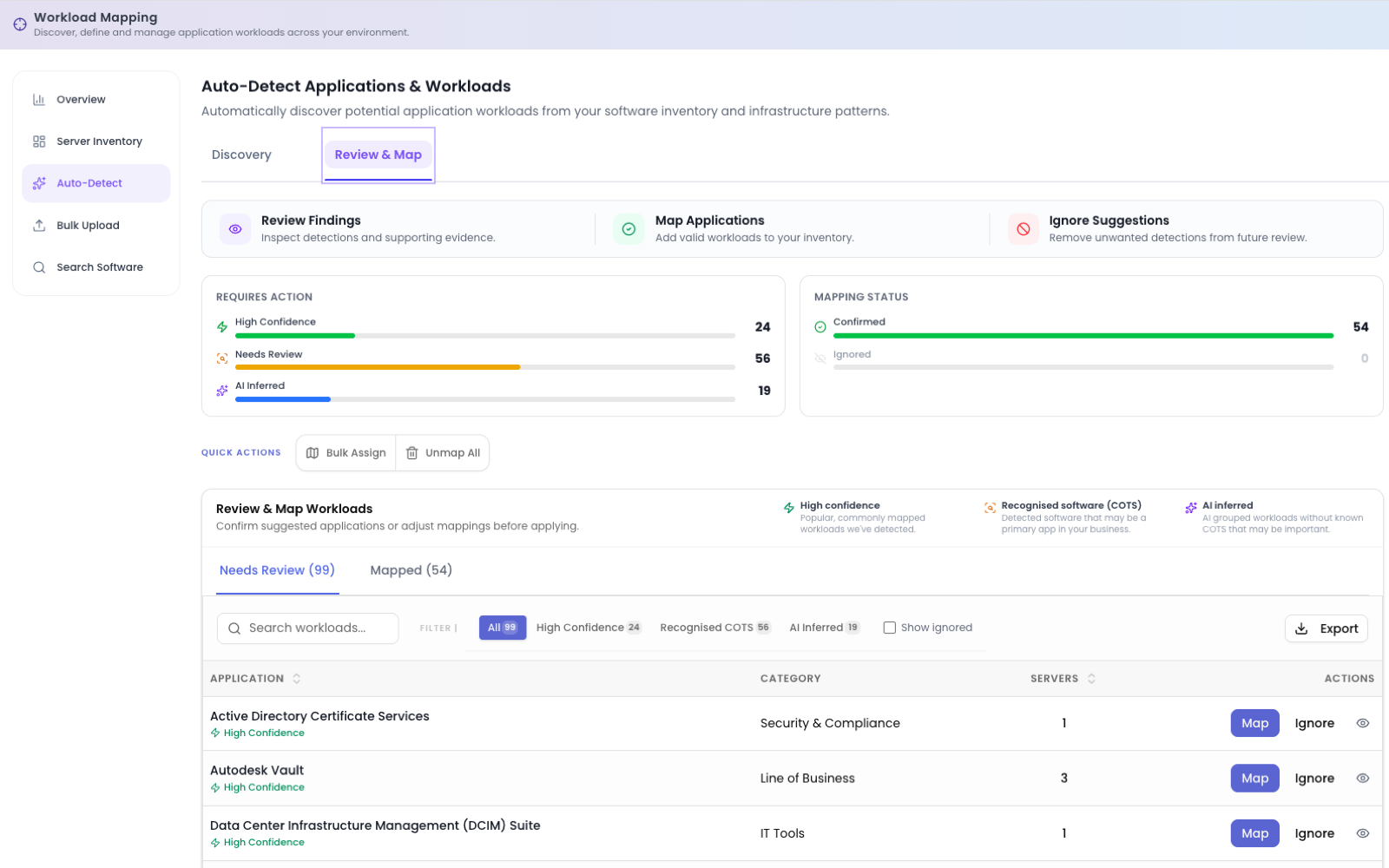
The Review & Map tab is where you review findings, map applications and ignore suggestions you don't want. Two summary panels frame the work: AT A GLANCE (counts of Detected applications, Primary COTS, Secondary COTS detections and AI Inferred findings) and Mapping Status (how many are Unmapped / Needs Review, how many are Mapped, and how many are Ignored).
Two Quick Actions let you move fast: Bulk Assign to map a whole group of findings at once, and Unmap All to clear suggestions and start over.
Below, a tabbed list switches between Needs Review and Mapped. For each row you can:
| Action | What it does |
|---|---|
| Map | Accept the suggestion and assign the servers to the application. |
| Ignore | Dismiss the suggestion so it stops appearing in your review list. |
| View | Open the finding to see the proposed application, the servers the AI thinks belong to it, and the COTS signals behind the suggestion, then confirm to Map. |
You can also bulk-map a whole bucket at once rather than working row by row.
AI Advisor
The AI Advisor tab surfaces the AI Advisor directly inside the workload-mapping workflow, so you can ask questions about detected applications or get mapping suggestions without leaving the screen. See AI Advisor for full documentation of its capabilities.
Auto-Detect never overwrites your existing mappings without permission, and you can Rerun Detection at any time as your data improves. All analysis happens inside your Dr Migrate instance.
Recommended approach
Bulk upload first
Import any CMDB data with Bulk Upload so the AI has examples to learn from before it runs.
Map the Primary COTS bucket
Use Map Primary COTS to accept the safe suggestions in one pass, giving instant coverage with little risk.
Review the rest
Work through the Secondary COTS and pattern-detected buckets in Review & Map, using View to check the servers and signals before you Map or Ignore.
Rerun and refine
Rerun Detection after changes, and use Server Inventory to resolve anything still unmapped.
Next step
After Auto-Detect, refine coverage in Server Inventory, or validate a specific product's footprint with Search Software.