

Server Inventory
Server Inventory is where you take manual control of application-to-server mappings and resolve anything still unmapped. It's the hands-on companion to Auto-Detect: where the AI proposes, Server Inventory lets you confirm, adjust and fill the gaps.
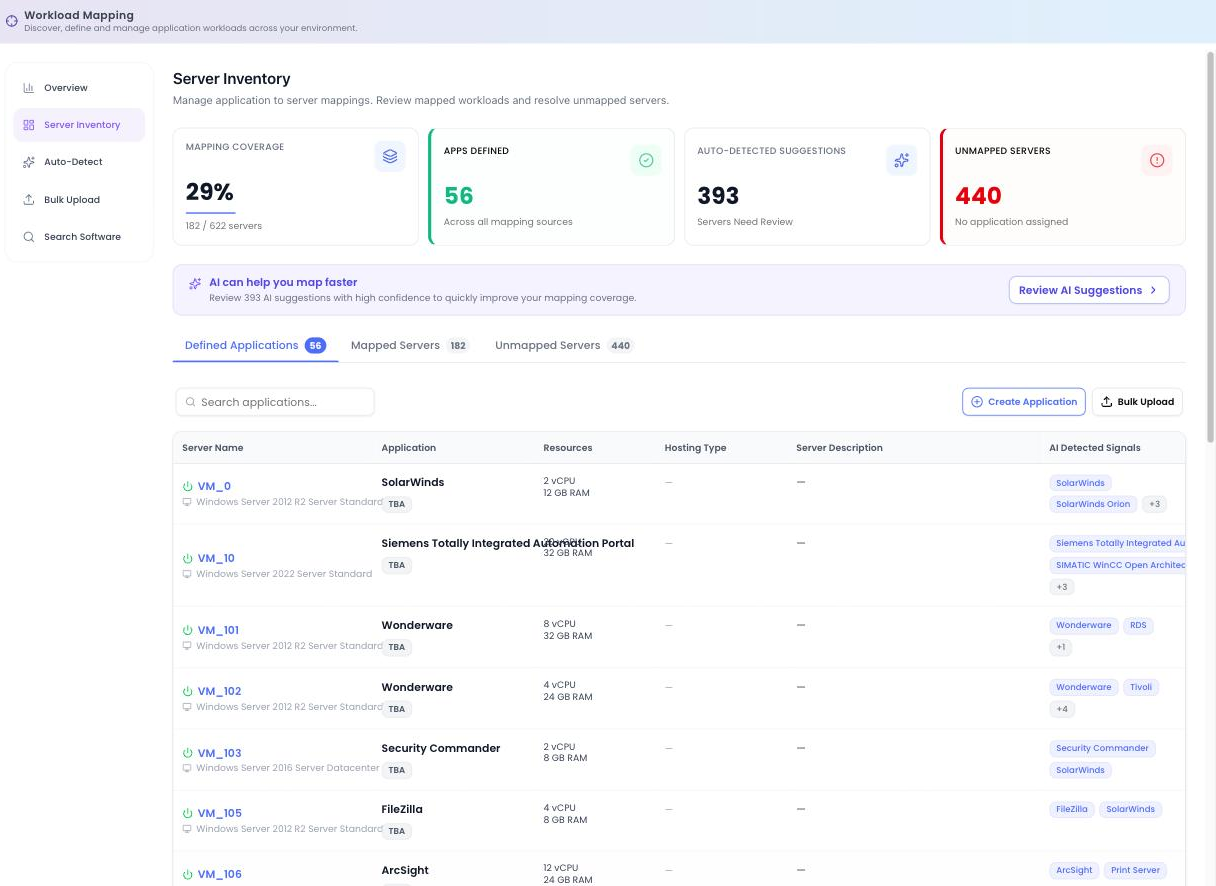
The metric tiles
Four tiles across the top keep your progress in view:
| Tile | What it shows |
|---|---|
| Mapping Coverage | Servers mapped as a proportion of the total discovered. |
| Apps Defined | How many application workloads exist. |
| Auto-Detected Suggestions | Servers the AI has suggested mappings for that need your review. |
| Unmapped Servers | Servers not yet assigned to any application. |
A Review AI Suggestions call-to-action sits alongside the tiles. It's the quickest way to lift coverage; it takes you straight to the high-confidence mappings Auto-Detect has proposed so you can confirm them in a single pass.
The three lenses
Server Inventory has three lens tabs, each showing a count, so you can switch between the views that matter as you work:
| Lens | What it lists |
|---|---|
| Defined Applications | Every application workload you've built, with its mapped servers. |
| Mapped Servers | All servers already assigned to an application. |
| Unmapped Servers | Servers still waiting to be assigned. |
Three buttons sit above the list: Create Application to define a new workload, Bulk Upload to jump to the CMDB import, and Export to download the current view.
Working with applications
In the Defined Applications lens, each row is expandable; open it to see the servers mapped to that application. Each application offers View App Details, which opens the Estate Explorer Application drawer, where you can inspect composition and maintain application-level details such as ownership, environments and tags.
Resolving unmapped servers
The Unmapped Servers lens is where you close the gap. To add an unmapped server to an application:
Open the Unmapped Servers lens
Switch to the Unmapped Servers tab to see everything not yet assigned. Use search or filtering to find the server you want.
Assign it to an application
Map the server to an existing application, or use Create Application first if no suitable workload exists yet, then assign it.
Confirm and watch coverage rise
Once assigned, the server moves into Mapped Servers and your Mapping Coverage tile updates immediately.
Anything you leave unmapped is grouped under a single "Unmapped" application, so no server is ever lost; you can always come back and resolve it later.
Next step
To let the AI do the heavy lifting before you refine by hand, start with Auto-Detect. When coverage looks good, open Application Inventory in Estate Explorer.