

Migration Planning
The Planning Workspace is the central place to plan, organise and optimise your migration. It follows an AI-assisted workflow: you define a strategy, then Dr Migrate generates treatment recommendations and a wave plan using your mapped workloads and estate intelligence. Planning accuracy improves as your mapping coverage increases.
The workspace is organised across top tabs (Overview, Strategy, Migration Treatment, and Wave Planning) that follow the planning workflow from left to right.
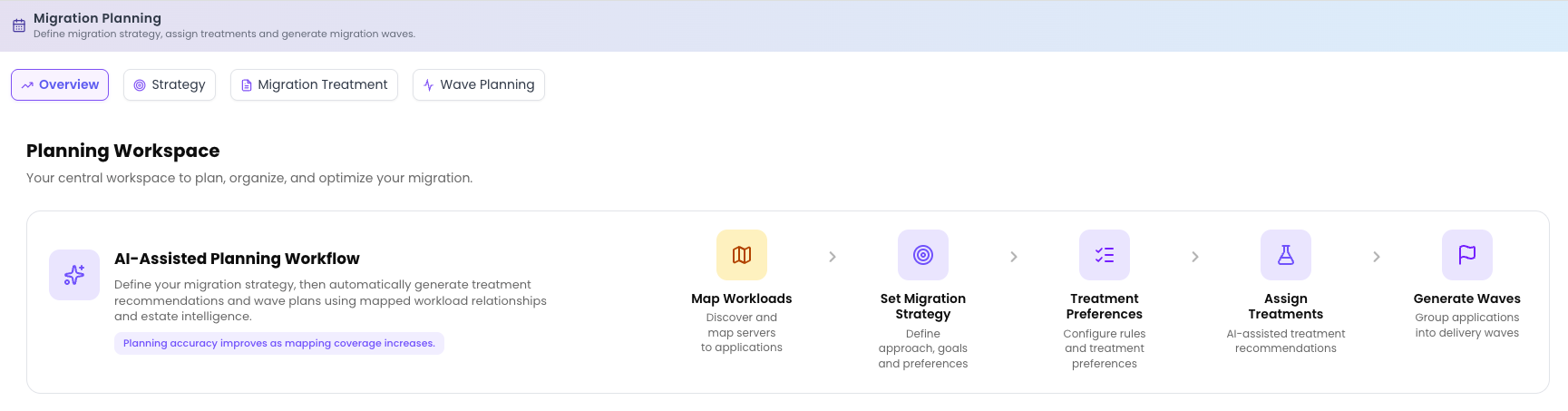
AI-assisted planning workflow
The Overview tab lays out the five-step workflow that drives the whole phase. Each step builds on the one before, and Dr Migrate gets more confident at every stage as your mapping coverage grows.
Map workloads
Coverage from Workload Mapping feeds everything else, so this stage is required before planning can be effective. If recommendations look thin, add more mapping coverage first.
Set migration strategy
Choose the overall approach: Migrate As-Is, Light Modernization, or Modernization Focused. Your strategy sets the guard rails Dr Migrate uses for every downstream recommendation.
Treatment preferences
Review and tune the preferences that guide consistent treatment decisions, including the modernisation target for each technology (for example which workloads move to PaaS and which stay on IaaS). Setting these well up front means fewer manual overrides later.
Assign treatments
Dr Migrate assigns a 6R treatment to every application and server. Accept the AI recommendations or override them; treatment coverage is tracked as a count of applications.
Generate waves
Group the treated, sized applications into sequenced delivery waves, ready for execution and your business case.
Planning accuracy improves as mapping coverage increases. The more servers and applications you map, the more confidently the AI can recommend strategy, treatments and waves.
Planning progress
The Overview tab tracks your progress through the workflow with a card for each stage. Each card shows a clear status (a coverage figure, a selection, or Not set) so you always know what's left to do. Counts shown here are illustrative.
| Card | What it shows |
|---|---|
| Workload Mapping (Required) | Unmapped servers, unmapped applications and the percentage of the estate mapped. |
| Strategy | The strategy you've selected, or Not set if you haven't chosen one yet. |
| Treatment Preferences | Whether treatment preferences have been generated and set. |
| Migration Treatment | Treatment coverage as a count of applications assigned (for example 84 / 120 apps). |
| Wave Planning | The number of waves defined for the migration. |
Where to next
Move through the workspace tabs in order, or jump straight to the stage you need: