

Migration Treatment
Migration Treatment is where you organise applications by 6R treatment and adjust the AI's recommendations. It turns your chosen strategy into a concrete 6R treatment for every workload, then lets you review and override those decisions from whichever angle suits the conversation.
Three flat sibling tabs run across the top: Treatment Preferences (the guard rails that drive the AI's suggestions), Treatment Board (the working board for assigning and overriding treatments), and Analysis Views (data cuts to review the estate from multiple planning angles).
The AI-assisted 6R treatment planner needs a strategy first. If you haven't chosen one, use Set Strategy to pick an approach and generate treatment preferences before assigning treatments.
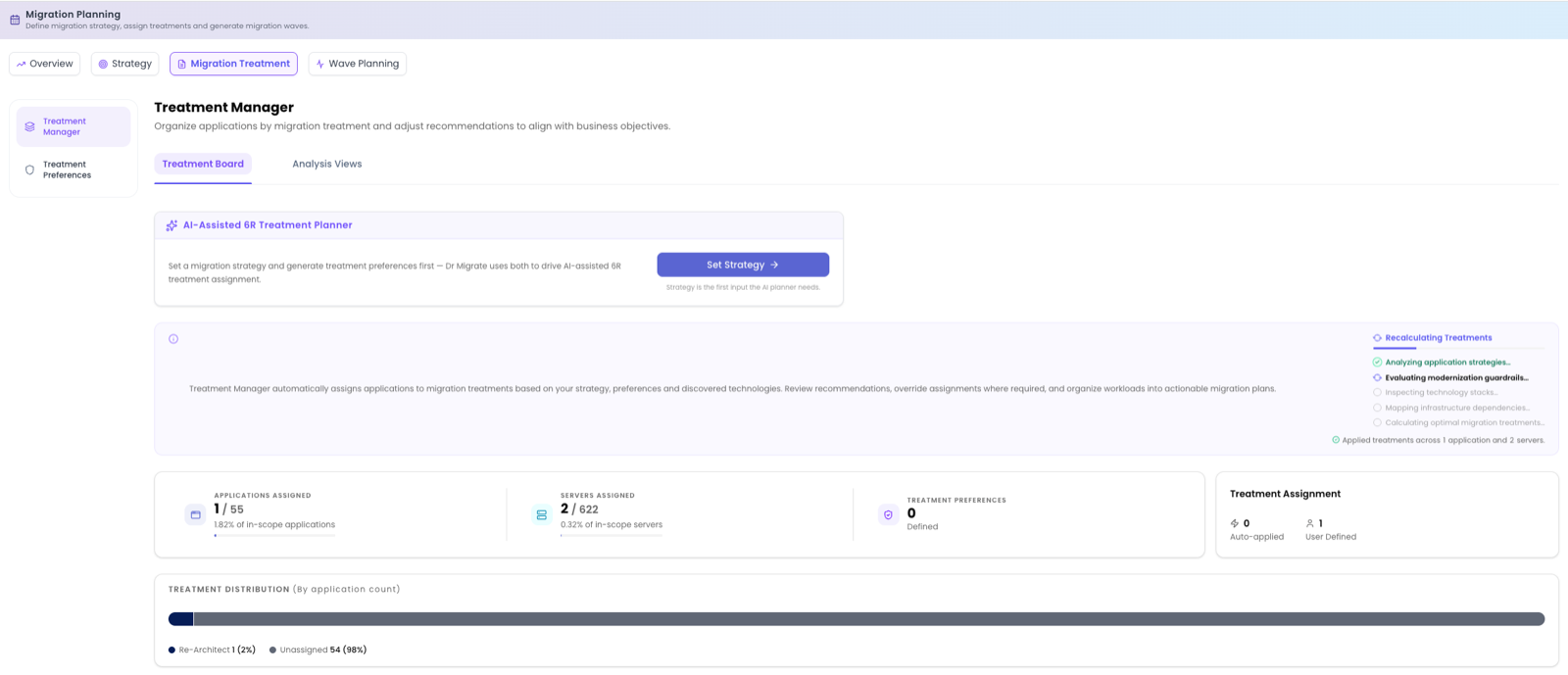
Treatment overview
At the top of the Treatment Manager, summary tiles show where the plan stands. Counts here are illustrative.
| Tile | What it shows |
|---|---|
| Applications Assigned | How many applications have a treatment (for example 84 / 120). |
| Servers Assigned | How many servers have a treatment (for example 410 / 525). |
| Treatment Preferences | How many preferences have been defined to guide the AI. |
| Treatment Assignment | The split between Auto-applied and User Defined treatments. |
A Treatment Distribution bar shows, at a glance, how the estate is spread across the 6R categories.
Treatment Board and Analysis Views
The Treatment Board and Analysis Views tabs let you assign and review treatments. Use the Treatment Board to assign and override treatments directly, and Analysis Views to slice the plan by different dimensions.
Treatment Board
The 6R Planning Board lays the estate out across columns, one per treatment, so you can see and reorganise the whole portfolio at once:
| Column | Meaning |
|---|---|
| Unassigned | Workloads still awaiting a treatment. |
| Rehost | Migrate As Is. |
| Replatform / Refactor | Modernise to PaaS. |
| Replace | Move to SaaS or cloud-native. |
| Re-Architect | Innovate: rebuild for the cloud. |
| Retire | Decommission. |
| Retain | Leave on premises. |
Use filter and search to focus on part of the estate, and the lens toggles (All, Auto-applied, User Defined and Wave Plan) to see only what the AI set, only what you've changed, or how treatments map onto the wave plan. Bulk Assign applies a treatment to many workloads at once.
Click any application to open the Application drawer at its 6R Treatment tab, where you can review the recommendation and override it in place. After changing preferences you can regenerate the plan to apply the new guard rails, preserving your manual overrides.
Analysis Views
The Migration Lens lets you review treatment coverage through whichever dimension fits the question in front of you:
- By Application: which apps landed in each 6R category.
- By Server: which servers went to rehost, replatform, retire, and so on.
- By Source Technology: how a technology was treated across the estate (for example, exactly how SQL was treated everywhere it runs).
- By Cloud Target: what you're actually moving workloads to in Azure.
- By Risk: treatments weighted by risk.
Any row can be opened to override the treatment for that technology or workload, so it's easy to answer "how did we treat SQL?" or "what's going to PaaS?" and act on it without leaving the screen.
Treatment Preferences: the guard rails
Open Treatment Preferences from the left sub-nav. Preferences are the guard rails that guide consistent treatment decisions across the estate: the rules the AI follows so the same technology is treated the same way everywhere.
Generating preferences intelligently requires an active migration strategy. If none is set, use Set Strategy to choose one first.

For every server, based on the technology it runs and the chosen strategy, Dr Migrate determines the most suitable cloud modernisation target. For example, a .NET workload may be recommended for App Service; where no suitable PaaS target exists, it recommends IaaS instead. You can:
- Filter by category (for example data services or middleware) to work through one technology family at a time.
- Set the guard rails in advance with the Microsoft account team and solution architects, so the generated plan reflects agreed targets from the outset.
- See, for each preference, whether it was human-assigned or auto-applied, so changes are always traceable.
Once the preferences look right, use Generate treatment plan to have Dr Migrate apply them across the estate and populate the Treatment Board.
6R treatments and treatment options
In Dr. Migrate, 6R treatment assignment is performed at the server level. This means each server can have only one active 6R treatment at any point in time, such as Rehost, Replatform, Replace, Retire, Retain, or Replatform/Refactor.
A server can, however, have multiple treatment options. Treatment options are useful when the same server supports more than one application workload. They allow you to describe different target outcomes for each application context, while still keeping the server's active 6R treatment consistent.
For example, a server cannot be both Rehosted and Replaced at the same time. If a server is first assigned Rehost and is later assigned Replace, Replace becomes the active treatment for that server. The most recently assigned treatment is the treatment that applies.
Example
Server01 supports two application workloads:
| Server | Application | Treatment Option |
|---|---|---|
| Server01 | SharePoint | Replace with SharePoint Online |
| Server01 | Microsoft Exchange | Replace with Exchange Online |
In this example, Server01 has multiple treatment options because it is associated with multiple applications. However, the active 6R treatment for Server01 is still only one treatment: Replace.
This is because treatment assignment is controlled at the server level, not separately for each application. The application-level treatment options help explain the intended replacement path for each workload, but they do not create multiple active treatments for the same server.
Cost allocation
When a server is mapped to multiple applications, its future-state cost is split evenly across those applications. The cost is not duplicated for each application.
For example, if Server01 has an estimated future-state cost of $1,200 per month and is mapped to two applications, the cost allocation would be:
| Application | Allocated Cost |
|---|---|
| SharePoint | $600/month |
| Microsoft Exchange | $600/month |
The same rule applies whether the server has one treatment option or multiple treatment options. Dr. Migrate allocates the server cost evenly across all applications associated with that server.
Recommended flow
Tune treatment preferences
Review the generated modernisation targets, filter by data services or middleware, and set guard rails with the account team and SAs.
Generate the treatment plan
Apply the preferences across the estate to populate the 6R Planning Board.
Review and override
Use the Treatment Board and Analysis Views to check the plan, open the Application drawer to override individual workloads, and bulk-assign where needed.
Regenerate as needed
If you change preferences, regenerate the plan (manual overrides are preserved) and move on to Wave Planning.