

Managing Scope
In Dr Migrate, you can mark applications or servers as out of scope for an assessment. Out-of-scope items are excluded from Total Cost of Ownership (TCO) and overall count calculations, so you can focus only on what's relevant to your migration.
Establish your application-to-server mapping first, in Discover → Workload Mapping. With a structured baseline in place it's much easier to decide what belongs in or out of scope.
Two ways to set scope
Per item
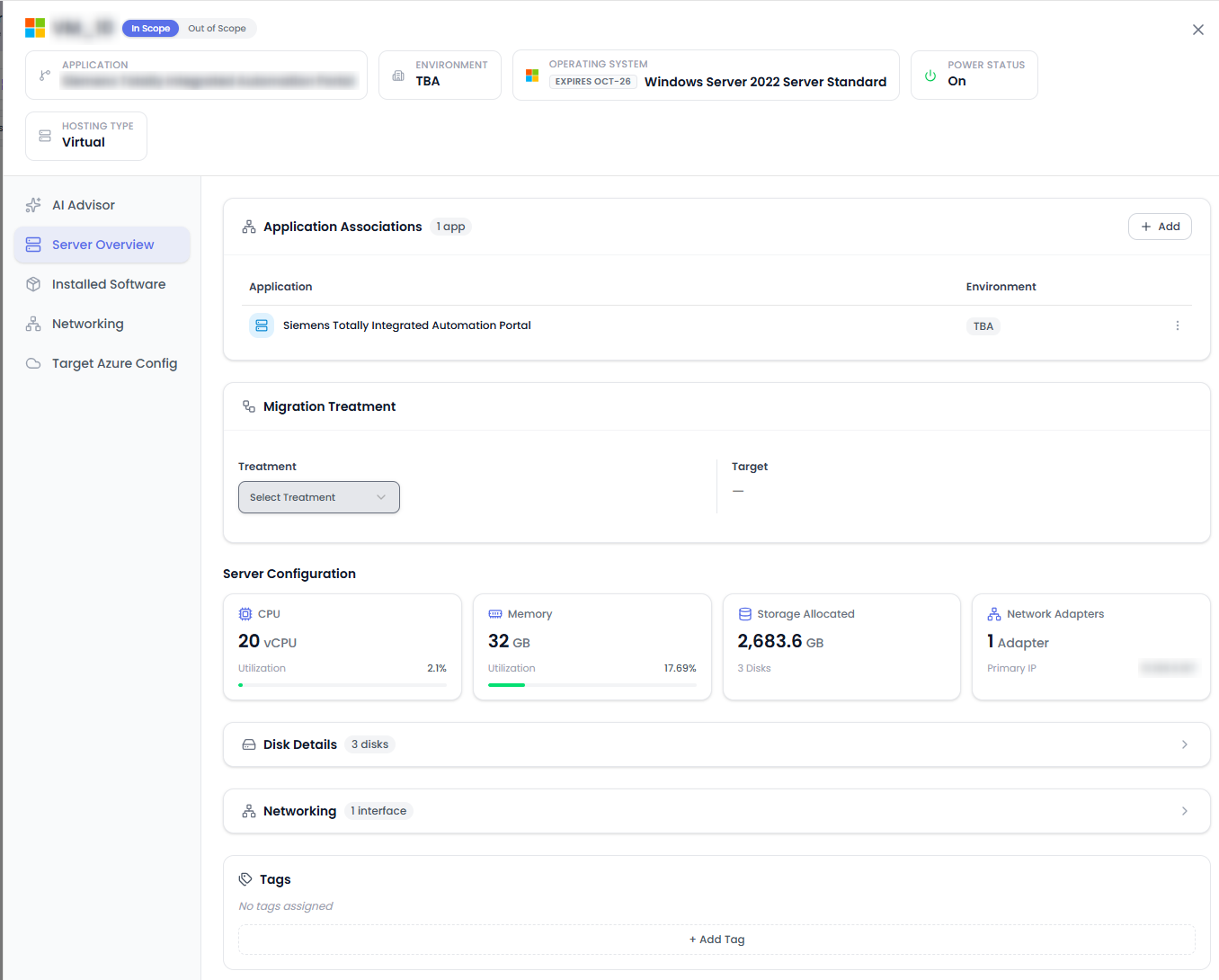
Set scope directly on an individual application or server using its scope toggle.
- Application-level: marking an application out of scope also marks all of its associated servers.
- Server-level: mark an individual server out of scope without affecting the rest of its application.
You'll find the scope toggle when you open an application or server from Estate Explorer (the Applications and Infrastructure lenses) or from the Server Inventory in Workload Mapping.
In bulk
To set scope across many servers at once, use the same bulk mapping template covered in Bulk Upload Existing Mappings:
- Download the pre-filled template as described in Download the pre-filled template.
- In the template's Assessment Scope column, set each server to In Scope or Out of Scope.
- Upload the completed template as described in Upload the completed template. The scope values are applied along with your mappings.
Generate a fresh template whenever you update your application-to-server mapping, so you're always working from the latest data.
See Inventory File Usage for the full template structure and validation rules.