

Configure Private Endpoint
If you are using a Private Endpoint configured Azure Migrate, certain changes are needed to ensure that data can be captured from the environment.
Private Endpoint configured Azure Migrate Projects are only supported in Marketplace
Configure Azure Migrate Project Settings
The Azure Migrate API is designed so that no 3rd Party ISV (including Dr Migrate) can work with the base Private Endpoint configuration - Azure Migrate specifies that in their documentation here.
This leads to an inability to ingest any performance data for your machines, which is important for right-sizing and accurate costing network dependency data for your machines, which is important for application dependency mapping, application complexity & wave planning
There are 2 options for ensuring this connectivity:
- Enable public network access on Azure Migrate, then for to the Storage Account connected to Azure Migrate and set access to Public Network Access
- Enable public network access on Azure Migrate, then for the Storage Account connected to Azure Migrate enable the Storage Service Endpoint, and bind it to the deployed Dr Migrate vNet
When using Private Endpoints Dr Migrate can not fully utilise the data within an Azure Migrate project if the public network access is disabled.
The Azure Migrate project should be configured to allow traffic from all networks to receive data from Dr Migrate.
Sign into Azure Portal
Sign into the Azure Migrate Portal as a user that has permissions to the Azure Migrate project
Find Azure Migrate Properties
Locate the Azure Migrate project properties.
Change Public Network Access Settings
Set the Disable Public Network Access Setting to No

This will allow Dr Migrate to connect to the Azure Migrate API as required.
Additional Configuration Steps
Option 1: Allow Public Network Access on Azure Migrate Storage Account
The recommended option for enabling Dr Migrate to connect to an Private Endpoint enabled Azure Migrate Project is to allow Public Network access to the storage account that is connected to your Azure Migrate Project.
Locate Azure Migrate Storage Account
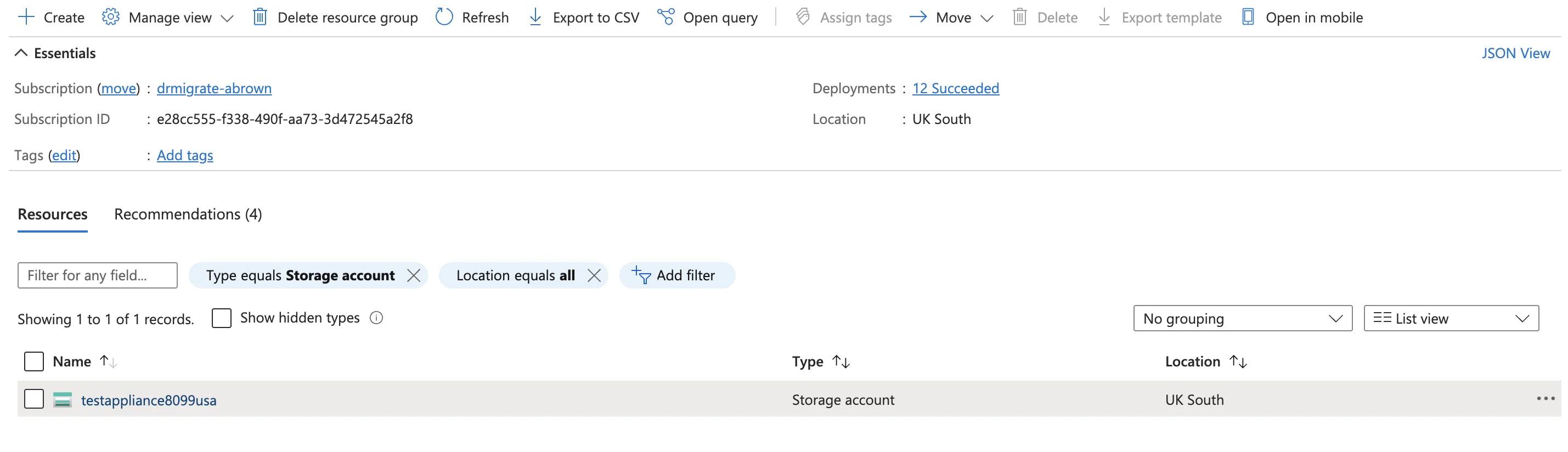
Locate the Azure Migrate Storage Account within the resource group that Azure Migrate is in
Enable Public Network Access
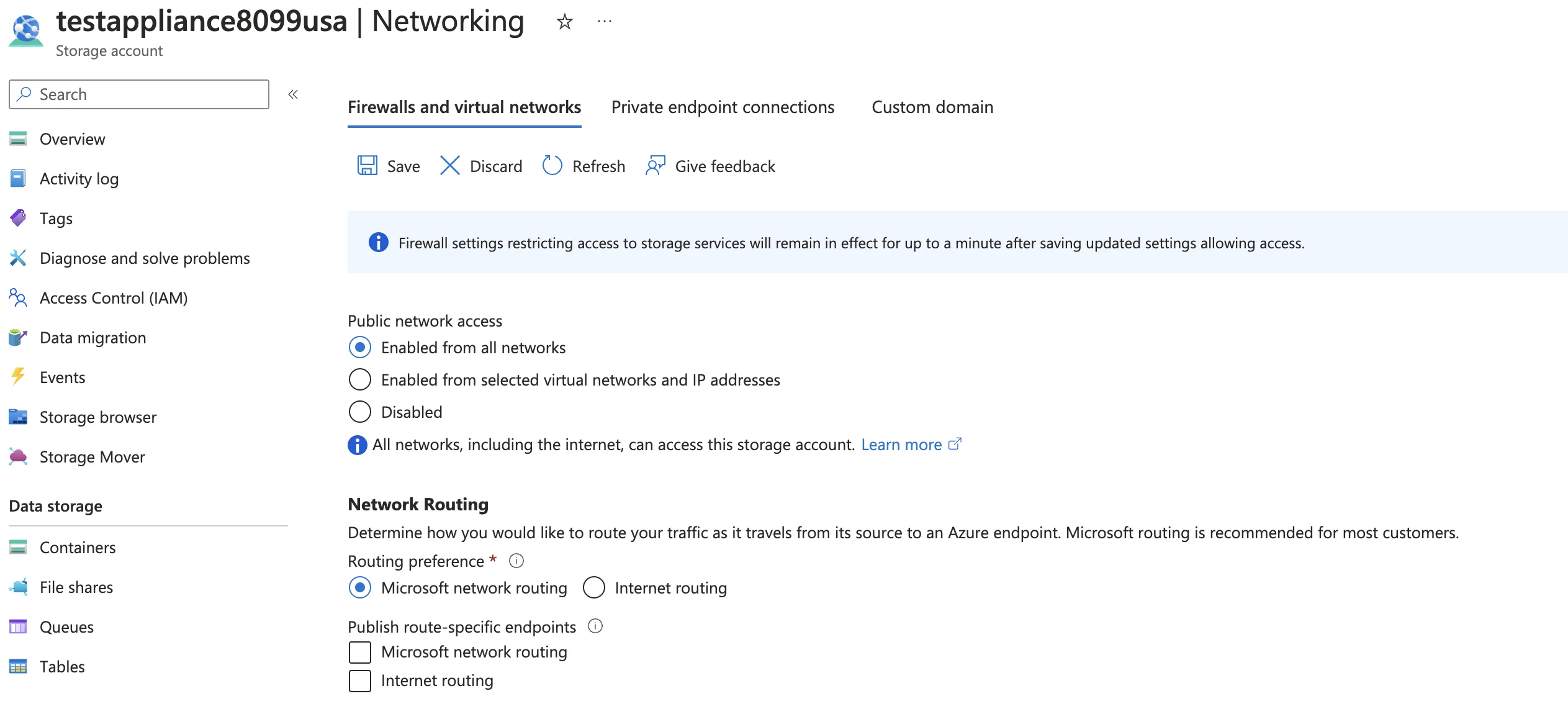
Within the Networking section, set the Public Network Access setting to Enabled from All Networks
Option 2: Add Network Service Endpoint to Dr Migrate vNet
If your Azure Migrate project is deployed in a different region than Dr Migrate, you cannot use this option due to cross-regional ACL limitations.
Service endpoints routes traffic from the virtual network through an optimal path to the Azure Storage service. This allows Dr Migrate to extract the data from the Azure Migrate project while maintaining private endpoint connectivity.
To learn more about Network Service Endpoints, please see here.
Locate Azure Migrate Storage Account
Locate the Azure Migrate Storage Account within the resource group that Azure Migrate is in
Attach vNet to Storage Account
From the Network Settings of the Azure Migrate Storage Account, add the Dr Migrate vNet, to allow communication between the Migrate Project and Dr Migrate.
If this setting is not changed, the Dr Migrate Deployment will be unable to retrieve information successfully from Azure Migrate Deployment.