

Downloading DMC
Selecting DMC as Your Data Source
When logging in to Dr Migrate for the first time, you will be prompted to select a Data Source to connect to. Choose DMC.
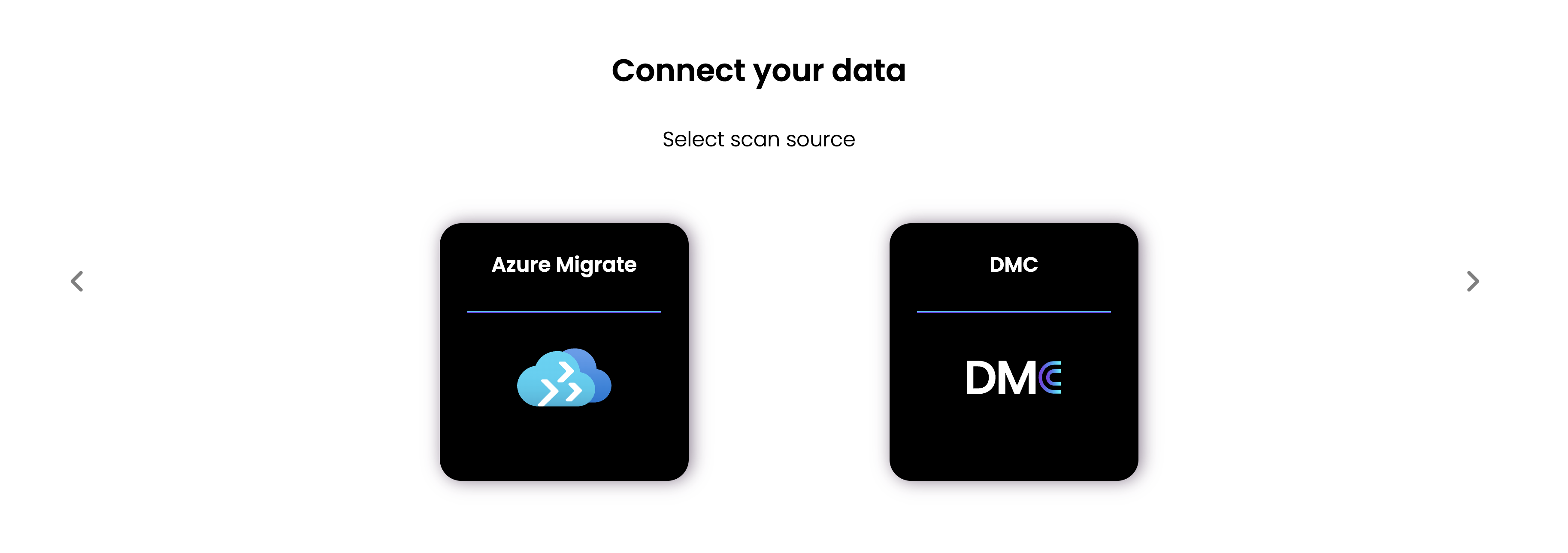
Downloading DMC for the First Time
Each customer is provisioned with their own dedicated, secure Dr Migrate instance.
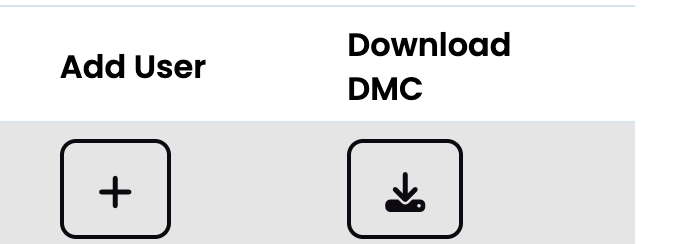
From your dashboard, you are able to download the DMC Collector, using the Download DMC Button
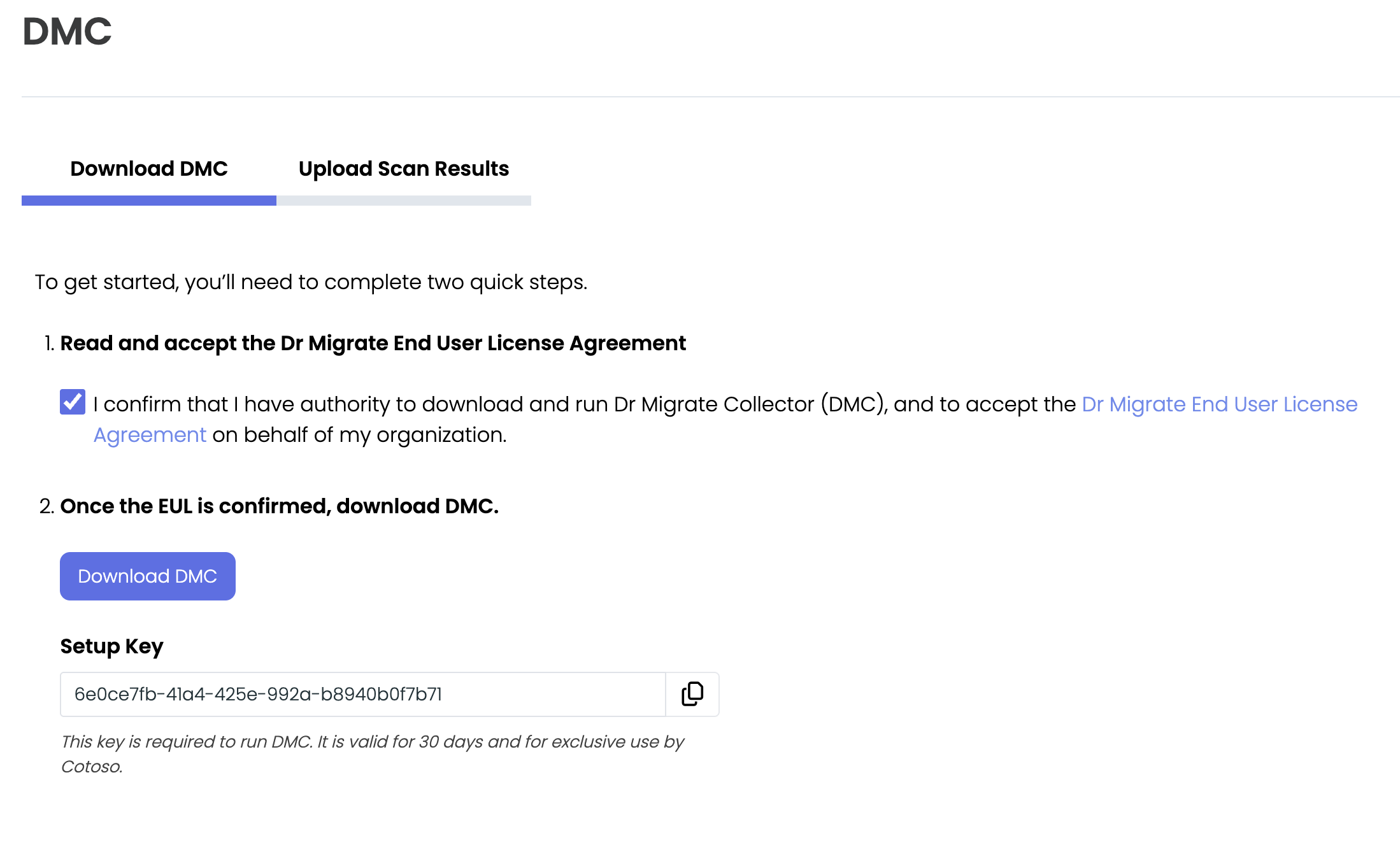
Follow these steps to download and prepare the Dr Migrate Collector (DMC)
Download DMC
- Accept the Dr Migrate End User License Agreement (EULA).
- Proceed to download the DMC application.
- Copy the provided license key.
Re-Downloading DMC
You may need to download DMC again in two scenarios:
When Your Package Expires
If your DMC package has expired (after 30 days), you'll need a fresh copy to continue scanning.
When Performing Additional Data Loads
If you need to perform another data collection scan (for additional servers, different data centers, or to update your environment data), you'll need a new DMC package.
Navigate to Data Sources
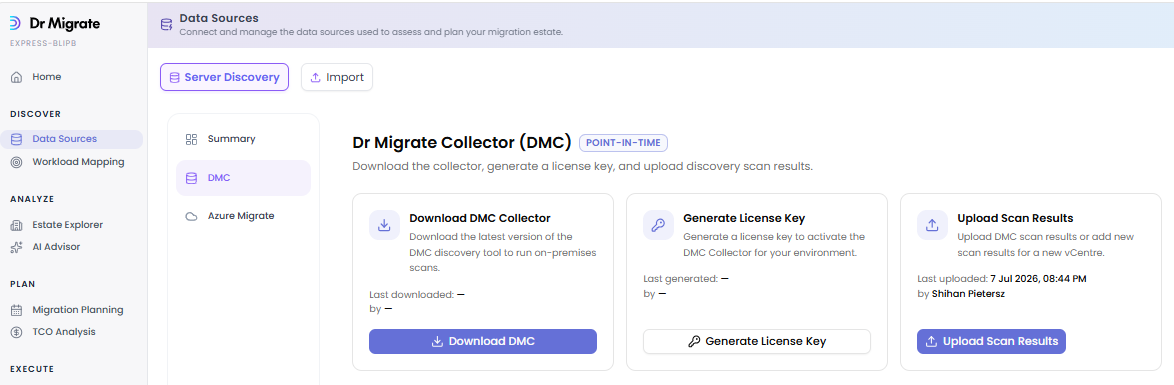
Log into your Dr Migrate instance Go to Discover > Data Sources in the sidebar Select the DMC tab
Download Fresh Package
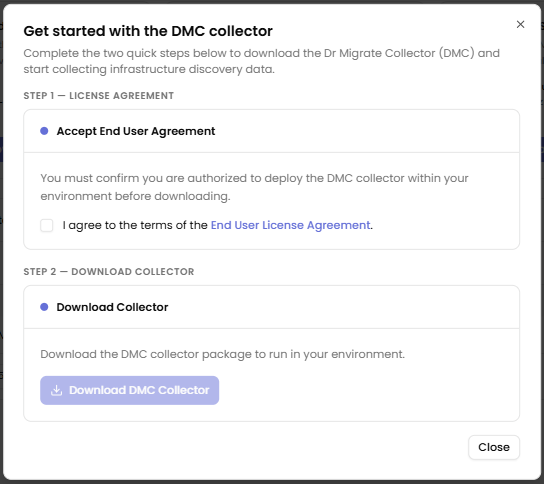
Accept the updated EULA if prompted, download the latest DMC application, copy the new 30-day license key
Note: Each DMC download includes a 30-day license key. You can download as many packages as needed as long as your Dr Migrate license is active.